 CRM
Sign in
What you will learn
- What Home lists
- How to search
- What every record header shows
- What each workspace contains
What you need
- A demo workspace sign-in (any role)
Open the demo workspace and choose a role on the sign-in screen. This tour uses Customer operations.
Each role sees the same records. The role decides which work is listed for you and which changes you can make.
Home
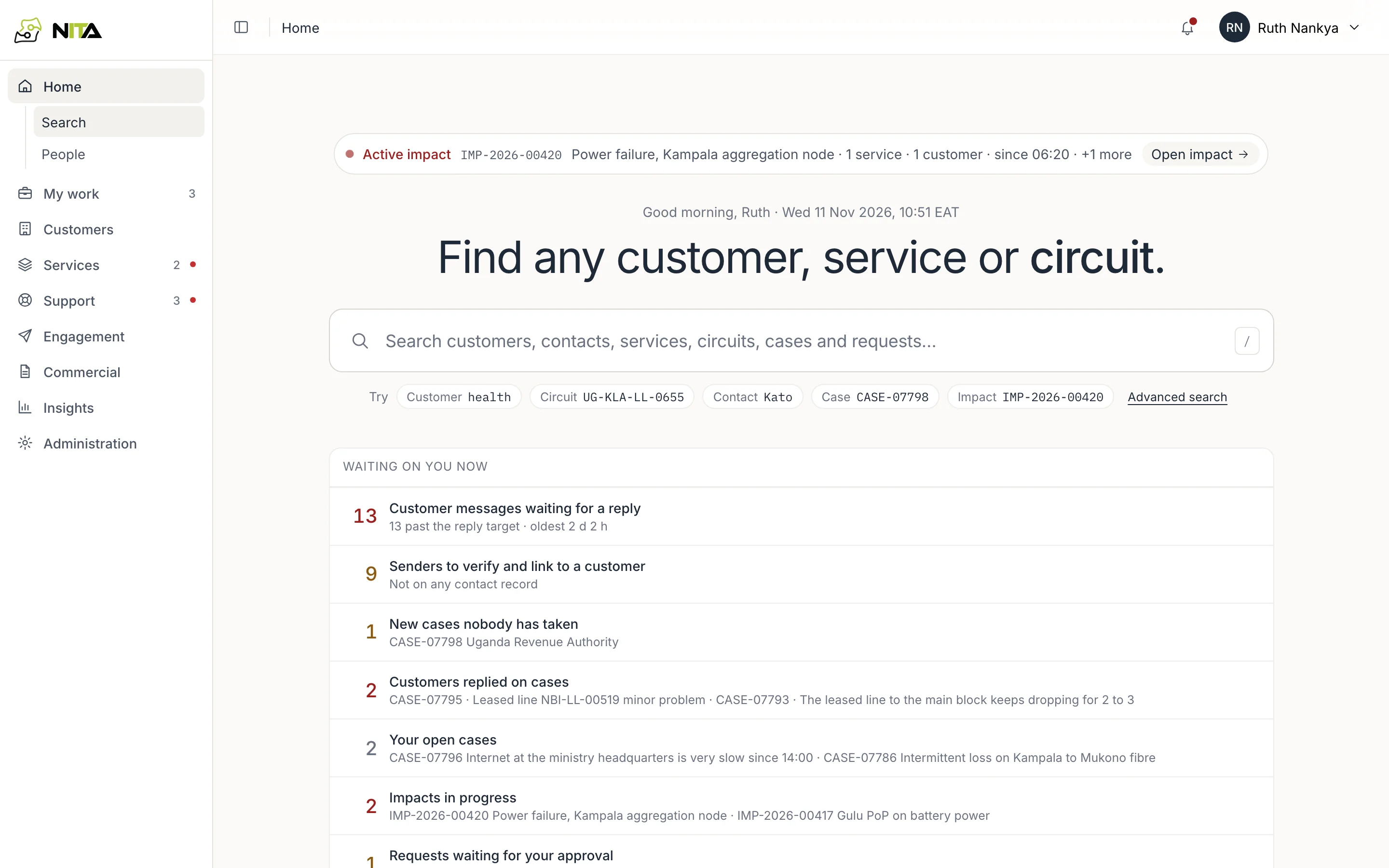
- The banner shows the active impact: its ID, description, affected services and customers, and start time. Open impact opens it.
- Waiting on you now lists open work for your role with counts: customer messages past the reply target, senders to verify, unassigned cases, customer replies on your cases, your open cases, impacts in progress and requests waiting for your approval.
Each line opens the matching list.
/ moves to the search box from any screen.
Search
The search box covers customers, contacts, services, circuits, cases and requests. Enter a name, phone number, circuit ID (UG-KLA-LL-0655) or record ID (CASE-07797).
Results are grouped by record type. Customers show ID, segment, region and account manager. Contacts show organisation, role and email.
Record headers
A record's header shows who owns it, what it is waiting on and what to do next.
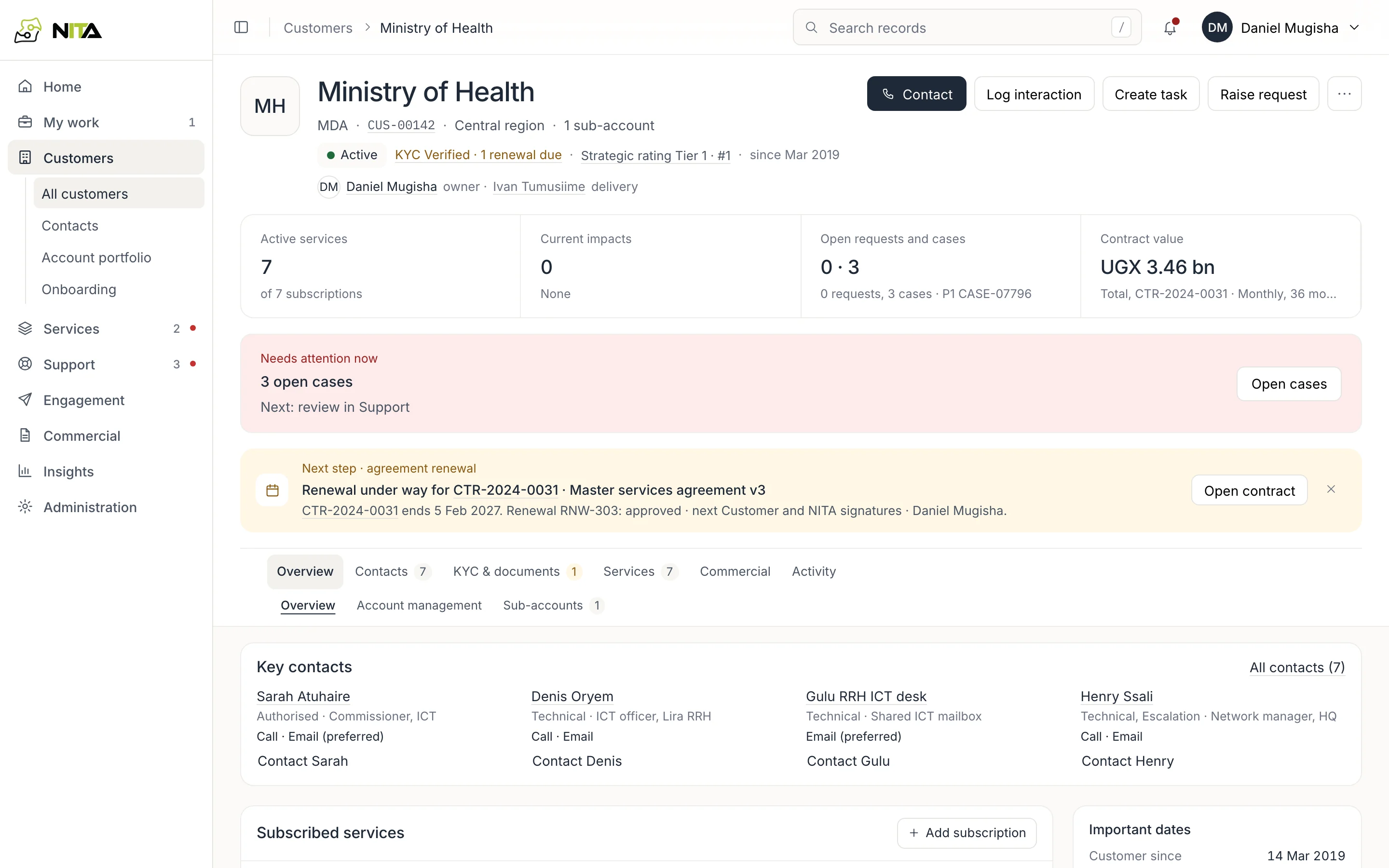
A customer header shows active services, current impacts, open requests and cases, and contract value, followed by Needs attention now and the account's next step.
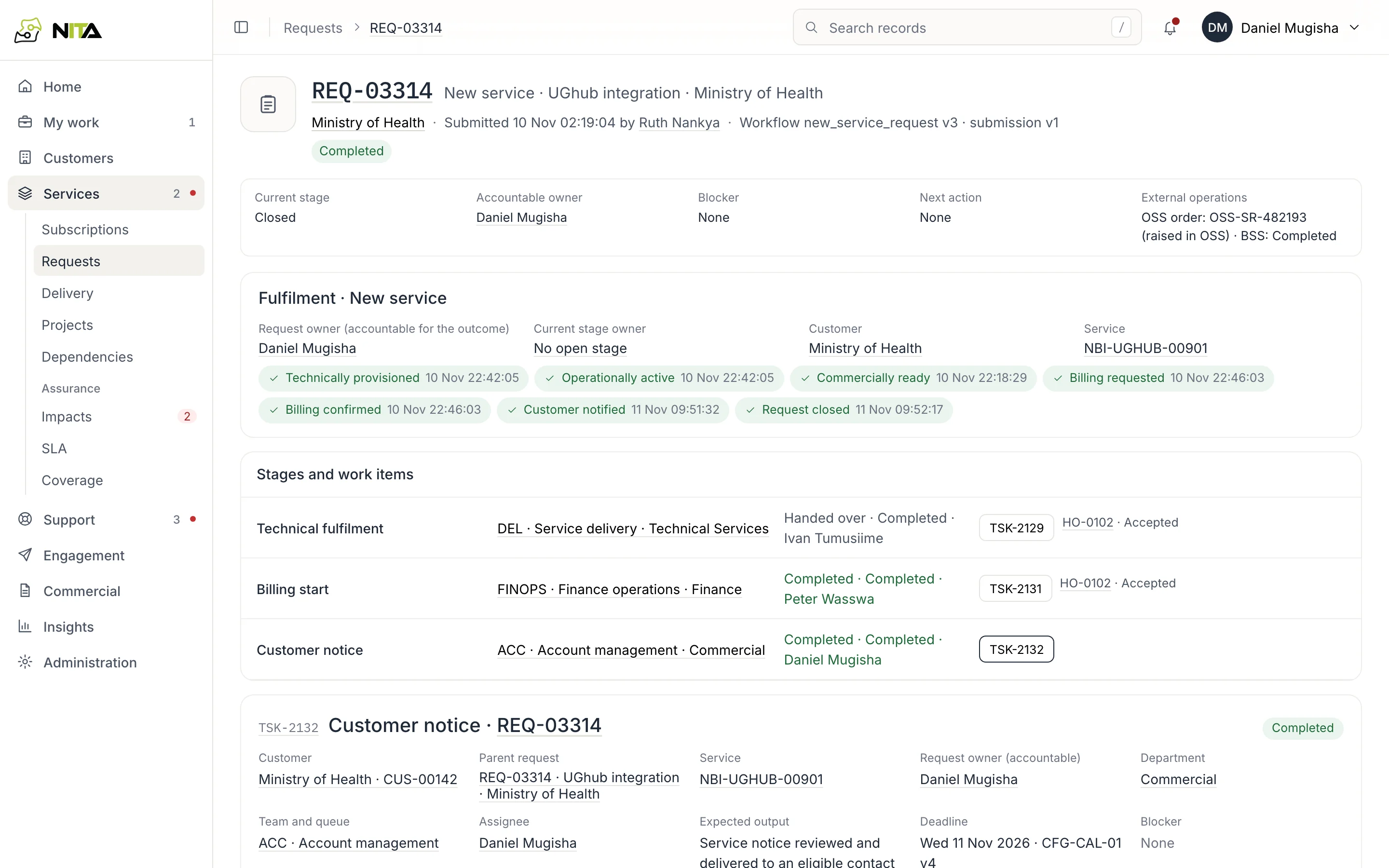
A request header shows current stage, accountable owner, blocker, next action and external references.
Workspaces
| Workspace | Sections |
|---|---|
| My work | Overview, tasks, approvals, calendar, exceptions |
| Customers | All customers, contacts, account portfolio, onboarding |
| Services | Subscriptions, requests, delivery, projects, dependencies; impacts, operational issues, SLA, coverage |
| Support | Cases, inbox, calls, knowledge |
| Engagement | Campaigns, forms, audiences, templates, communications |
| Commercial | Contracts, transactions, renewals |
| Insights | Dashboards, report library, schedules, measure definitions |
| Administration | Administration centre, automations, channels, connectors |
Sidebar counts show open items; a red dot marks overdue items.
Next guides
- Customer operations: Fault cases, Inbox
- Network operations: Outages
- Account managers: Customer records, Deliver a new service
- Approvers: Approvals
- Management: Dashboards
- Administrators: Organisation configuration