 CRM
Step 1 of 4 · 1 min
Forms
What you will learn
- Who a form is for
- Building and publishing a form
- Reviewing submissions and asking for corrections
What you need
- An account manager sign-in
Engagement → Forms lists your forms with state, audience, owner and number of submissions.
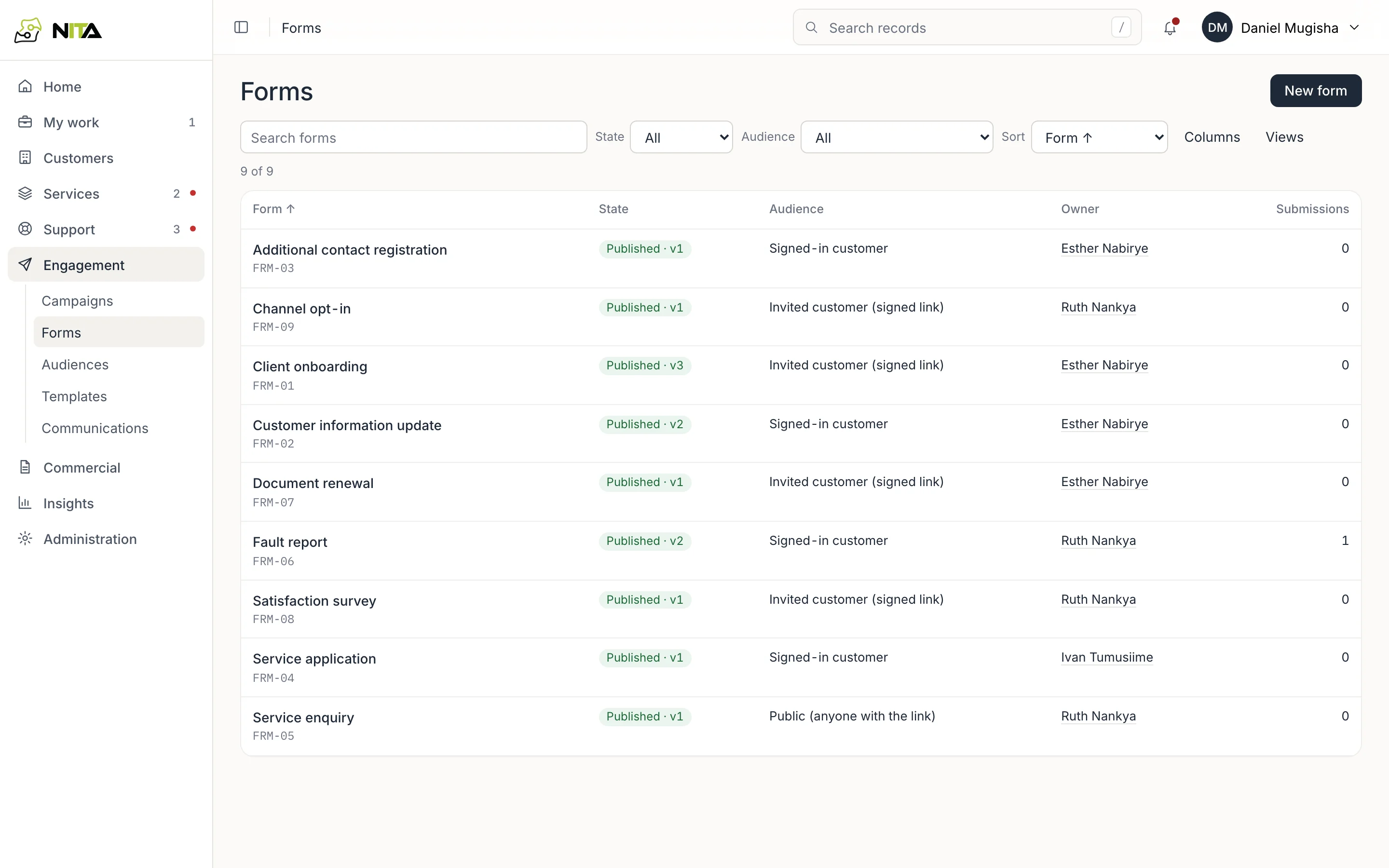
Who can fill a form in:
| Audience | Reached by |
|---|---|
| Public | Anyone with the link |
| Invited customer | A signed link sent to one contact |
| Signed-in customer | The customer portal |
| Staff | Your own team |
Step 2 of 4 · 2 min
A form
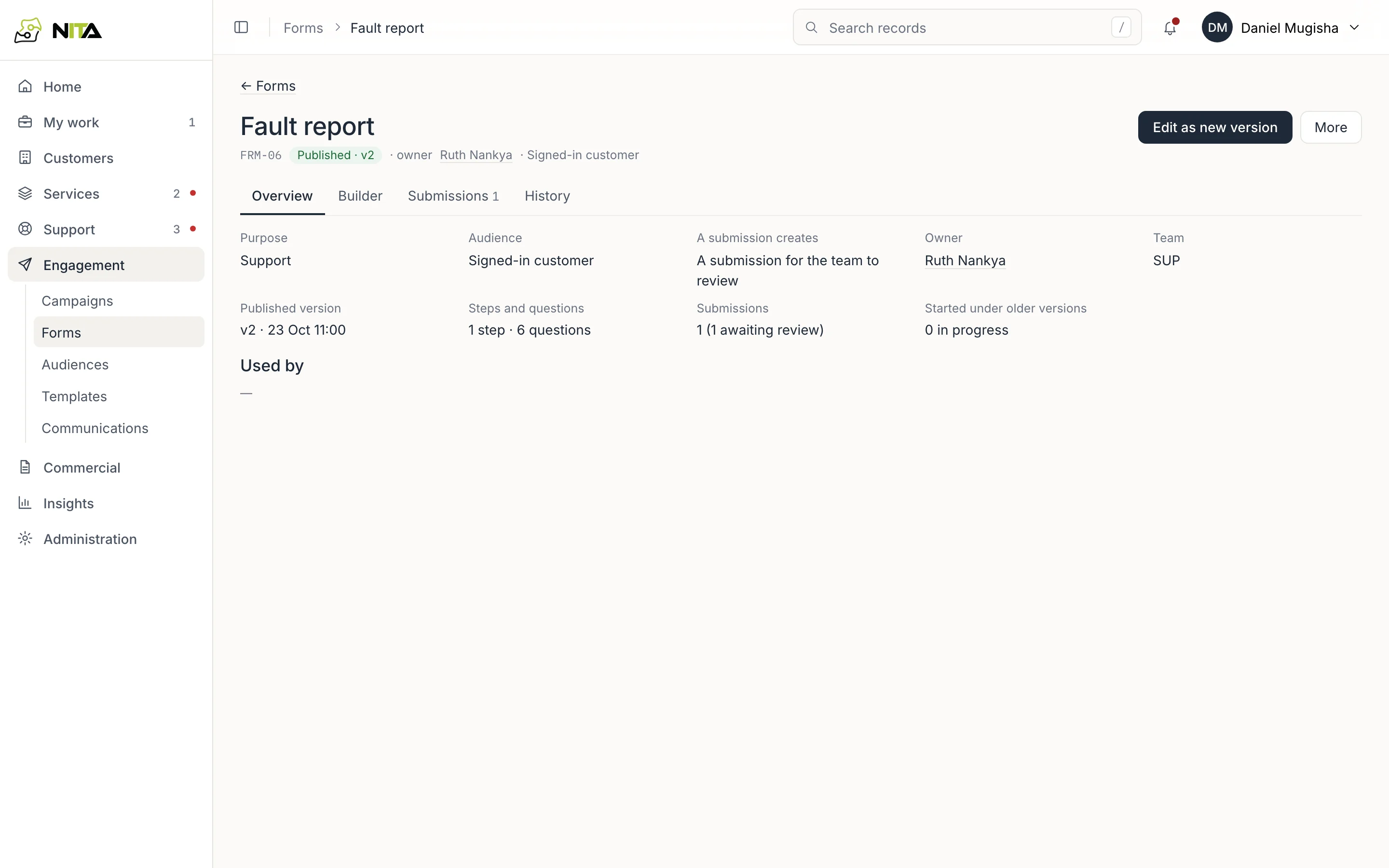
Overview shows the audience, what a submission creates (a submission to review, a task for a team, a service request draft or an update to an onboarding record), the owning team, the published version, and how many submissions are waiting for review.
Used by lists the onboarding steps, campaigns and automations that send this form.
Step 3 of 4 · 3 min
Build and publish
Builder shows the form's steps and questions.
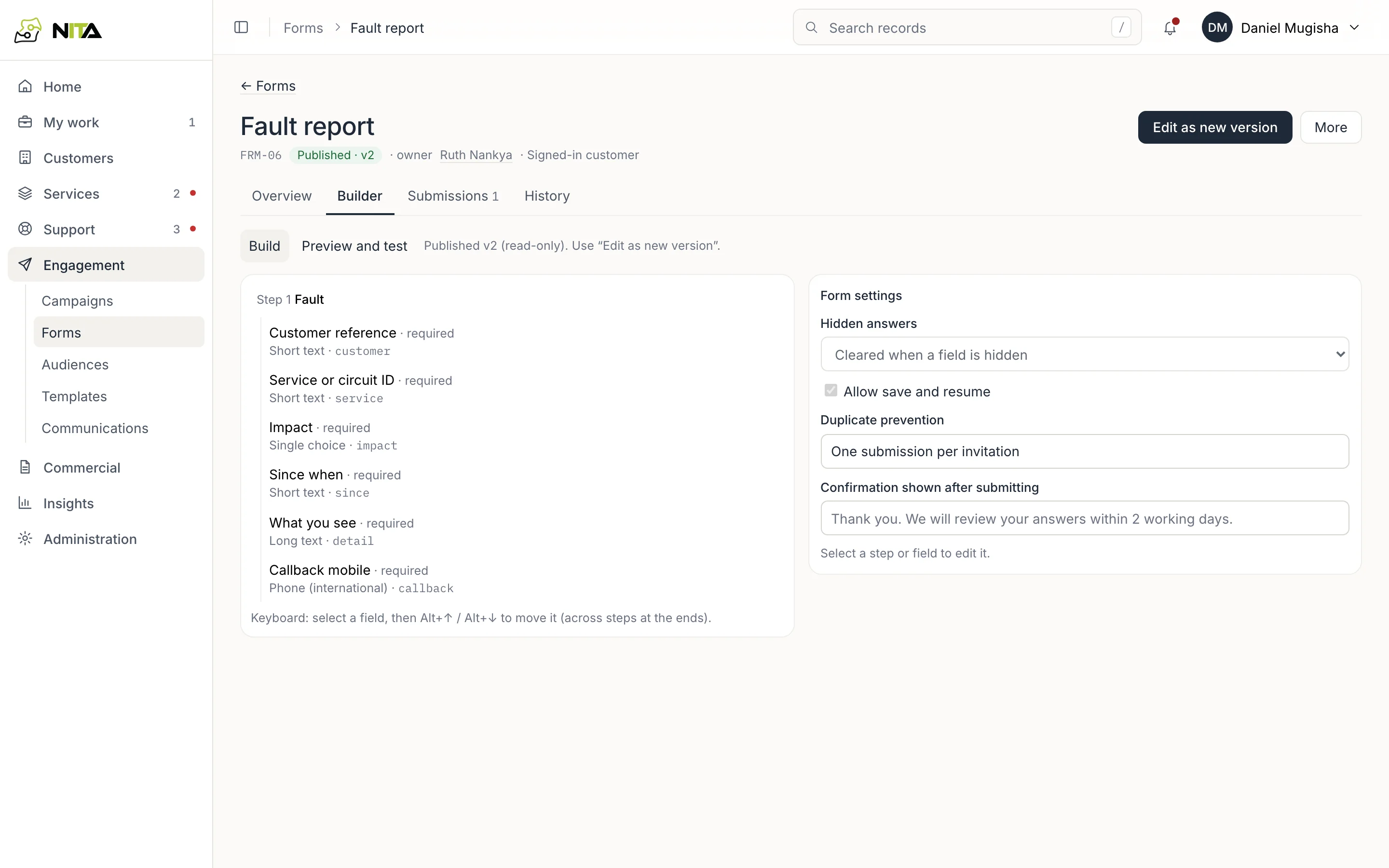
- Add a step or a question. Question types include short and long text, single choice, phone and email, each optional or required.
- Select a question to change its label, type and whether it is required. Alt+↑ / ↓ moves it.
- Form settings: what happens to answers in hidden questions, save and resume, duplicate prevention, and the confirmation shown after submitting.
- Publish. A published form changes only through Edit as new version; people who started on an earlier version finish on that version.
Step 4 of 4 · 3 min
Review submissions
Submissions lists what customers sent, with reviewer and state.
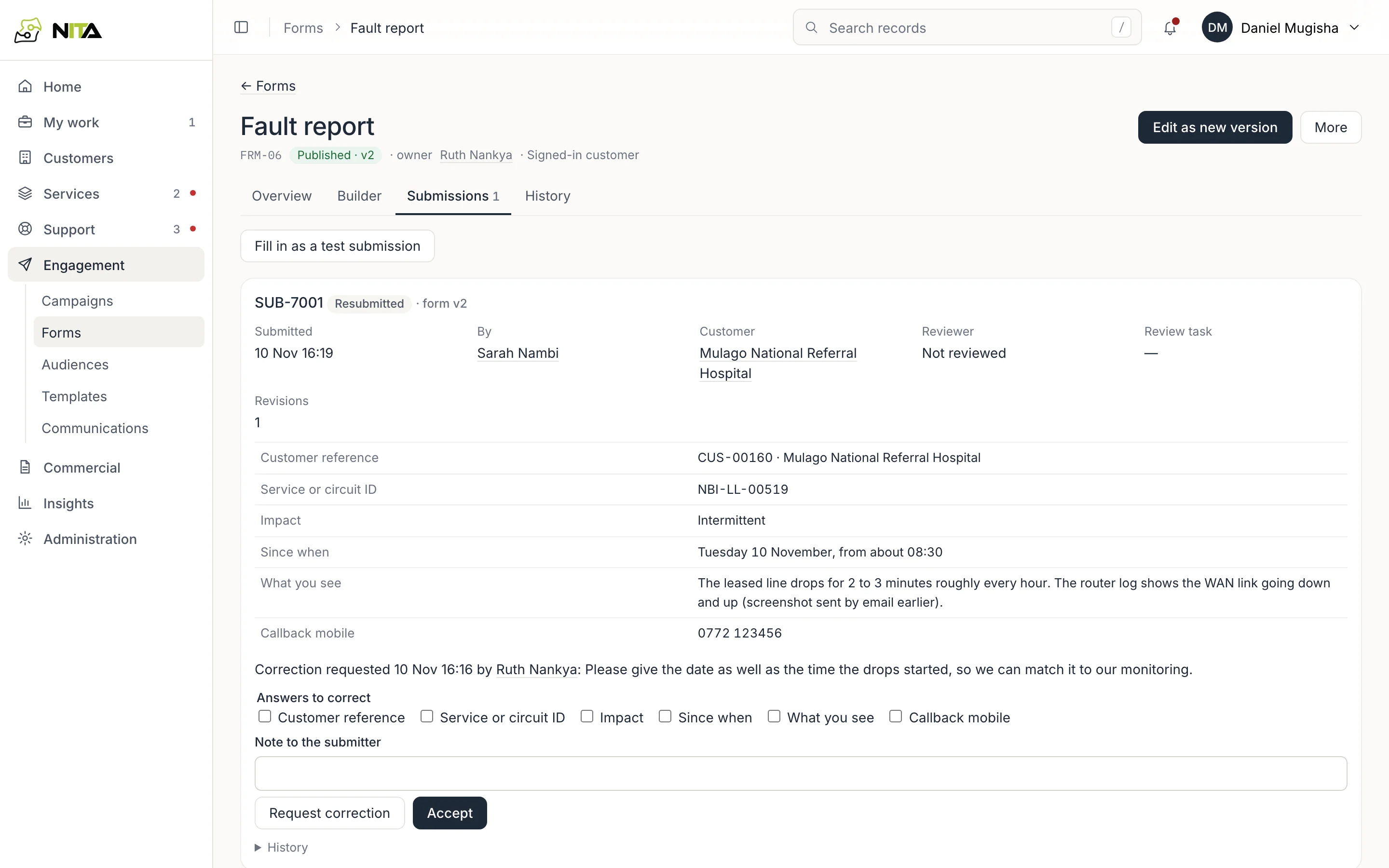
Open a submission to see each answer.
- Accept completes it and creates what the form is set to create.
- Request correction: tick the answers that need changing and write a note to the submitter. The customer corrects only those answers, and the submission comes back for review as a new revision.
The submission's history keeps every revision and decision.